
Clinic calendar management: Views, doctors, and appointments
As a clinic grows, calendar management gets more complicated. Tracking appointments at a single-doctor practice is relatively simple, but the picture changes quickly in setups where several doctors work, different treatment types are scheduled, and several staff members enter appointments into the system. Knowing who is available at what time, preventing overlaps, and seeing the overall flow of the day clearly directly affect both the clinic’s efficiency and the patient experience.
7 April 20267 min read
In this article
- Why is clinic calendar management so critical?
- Three calendar views in Flextell
- Creating appointments from the calendar
- Multi-doctor calendar management
- Google and Outlook calendar sync in Flextell
- Appointment statuses on the calendar
- Frequently asked questions
- Calendar management is the cornerstone of clinic efficiency
Flextell’s calendar module meets this need with three different views and a multi-doctor management infrastructure. In this guide we walk step by step through how the clinic calendar works in Flextell, which view is useful in which situation, and how calendars are managed in multi-doctor setups.
Try Flextell calendar management for free →
Why is clinic calendar management so critical?
The calendar is the visible face of clinic operations. The doctor’s day, the assistant’s work plan, and the patient’s experience all depend on how accurate and accessible the information on the calendar is.
With manual calendars, keeping this balance gets harder. Appointments kept in a phone book, different people booking the same time slot, the doctor’s personal calendar and the clinic calendar drifting apart: each of these looks like a small problem but locks up operations once they pile up.
A digital, AI-controlled calendar system brings these variables under control. Who has an appointment, when, and with which doctor is always clearly visible; overlaps are blocked by the system; staff share the same screen.
Three calendar views in Flextell
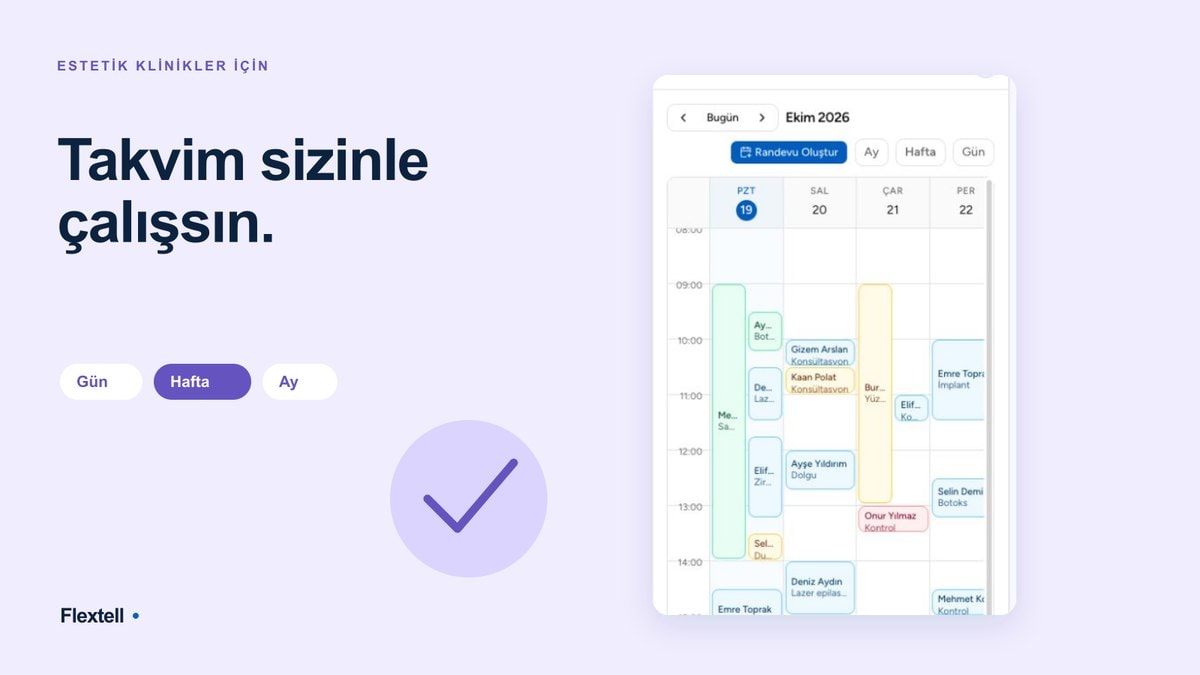
In Flextell, the clinic calendar can be used in three different views: daily, weekly, and monthly. These views are not alternatives to each other but complements. Each answers a different planning need, and you can switch between them with one click.
Daily view: A clear picture of the day
The daily view lists all appointments for the selected day in time order. It’s the ideal starting screen for the assistant or doctor who arrives at the clinic in the morning: who is coming when, which treatments are planned, and where the gaps are hour by hour are all clear at a glance.
This view is also the most practical screen for live appointment updates. Adding a new patient in place of a canceled appointment or adjusting times can be done quickly from the daily view.
Weekly view: Seeing the load in advance
The weekly view presents a seven-day span together. Which days of the week are busy and which are quiet becomes clear on this screen. This information has both operational and strategic value for the clinic: it becomes easier to plan extra support for busy days or to set up a reminder or campaign flow for quiet days from this view.
At clinics where several doctors work, the weekly view also shows how the load is distributed among doctors. Which doctor’s week is full and which has gaps in the calendar is quickly read in the weekly view.
Monthly view: Overall occupancy and planning
The monthly view offers the perspective the clinic manager needs most: the overall occupancy picture for 30 days. Which dates are full and which are available is visible on a single screen; this makes holiday planning, staff leave, and the management of seasonal peaks much easier.
The monthly view is also a valuable tool for multi-session treatments. Seeing where recurring appointments, such as skin renewal or physical therapy, sit within the overall calendar makes it easier to set up a healthy session plan.
Would you like detailed information on how multi-session treatments are planned? You can find our guide to clinic treatment and session plan management here.
Creating appointments from the calendar
In Flextell, the calendar is not just a viewing tool; it is also one of the fastest ways to create an appointment. Clicking any open time slot on the calendar screen opens the appointment creation screen. Once the patient, treatment type, and doctor are entered, the system automatically runs two checks: whether the selected time falls within the clinic’s working hours, and whether that doctor is available at that time. If either condition isn’t met, the system doesn’t create the appointment and shows a warning.
This flow also speeds up appointment creation by assistants or receptionists during a phone call. Working directly on the calendar instead of switching to a separate menu shaves a few seconds off each transaction, and at clinics that enter dozens of appointments a day, this small difference adds up to serious savings in time and effort.
Would you like a closer look at every step of the appointment creation process? You can find our guide to clinic appointment management here.
Multi-doctor calendar management
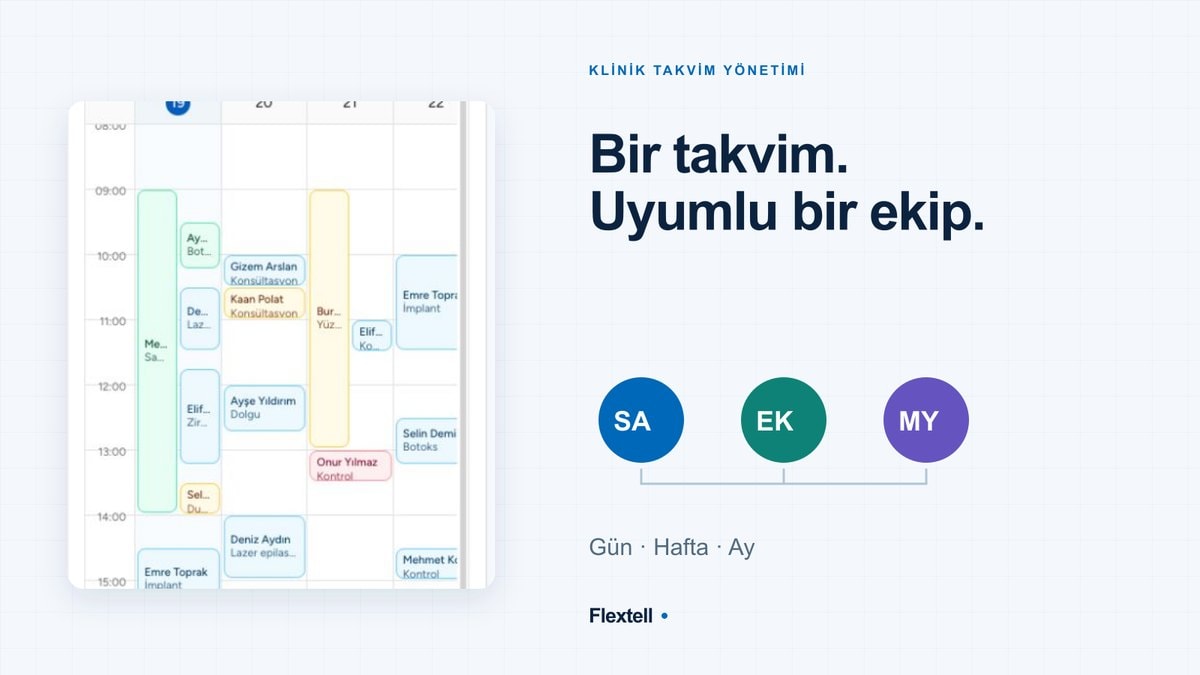
At clinics where several doctors work, calendar management takes on a different dimension than at single-doctor setups. It isn’t enough to know who is available when; you need to see all the doctors’ calendars at the same time, compare them, and manage them in a coordinated way.
Doctor-based calendar view
In Flextell, users in the manager or assistant role can see several doctors’ appointments side by side on the calendar screen. Thanks to a separate column or color coding for each doctor, the status of different doctors at the same hour can be compared on one screen. This view can be used in both daily and weekly mode.
This feature creates value especially in these scenarios:
When a patient asks for an appointment in a certain time window, you can see at a glance which doctor is available at that hour. If the preferred doctor is booked, suggesting an alternative gets much easier. Likewise, when a doctor goes on leave or will arrive late, rearranging that day’s appointments can be done much faster when all the doctors’ calendars are on the same screen.
Overlap prevention: The system won’t allow it
At clinics with many staff, entering two different appointments for the same doctor at the same time is a small but costly mistake. Flextell solves this problem not as a rule but as a technical block: the system doesn’t allow a new appointment to be entered in a slot that overlaps an existing appointment under any circumstances. This check applies equally to manual entries and to appointment requests that come in through the AI assistant.
A separate profile and availability definition for each doctor
In Flextell, a separate profile is created for each doctor. The doctor’s specialty, the treatments they perform, their working hours, and their calendar connection are defined in this profile. When creating an appointment, only the doctors assigned to that treatment can be selected; this prevents the wrong appointment from being given to the wrong doctor.
Hours outside working hours are automatically blocked on the calendar. When a doctor’s vacation or leave days are defined in the system, those dates don’t show up as available. This way assistants don’t need to separately check the doctor’s schedule before every appointment; all this information is already reflected on the calendar.
Curious how doctor profiles and availability definitions are set up? You can find our guide to clinic doctor management here.
Google and Outlook calendar sync in Flextell
While Flextell’s calendar manages the appointment flow inside the clinic, it can also work in sync with doctors’ personal calendars. Each doctor can connect their own Google Calendar or Outlook calendar to Flextell. When an appointment is created, canceled, or rescheduled, the doctor’s personal calendar is updated automatically.
This feature is particularly important for doctors who move around independently of the clinic. Even without logging in to the clinic system, the doctor can see that day’s appointments live from their personal calendar. Also, if a slot is blocked on the doctor’s personal calendar, Flextell doesn’t show that slot as available; this gives overlap protection in both directions.
Would you like more information on the technical setup of Google and Outlook calendar integration? You can find our clinic calendar integration guide here.
Appointment statuses on the calendar
In Flextell, every appointment is in one of six statuses: pending, confirmed, canceled, rejected, completed, and no-show. In the calendar view, these statuses can be read right away by color or label; when the assistant looks at the screen in the morning, they can see at a glance which appointment is confirmed and which is still pending.
The "no-show" status is especially valuable for reporting. Over time, you can analyze at which hours and for which treatments the no-show rate is high; this data can be used directly to shape your calendar occupancy strategy.
Curious how appointment statuses work and how automatic reminders lower the no-show rate? You can find our guide to clinic appointment management here.
Frequently asked questions
Is it possible to see several doctors’ calendars at the same time?
Yes. Users in the manager or assistant role can see all doctors’ appointments side by side on the calendar screen. Which doctor is available at that hour can be compared on a single screen.
How do I switch between calendar views?
On the calendar screen, you can switch between the daily, weekly, and monthly views with one click. The default view can be set according to the clinic’s preference.
How do I define a doctor’s days off on the calendar?
Vacation, leave, or special closed days can be defined in the system from each doctor’s profile. These dates are automatically blocked on the calendar; the system doesn’t allow appointments to be entered on those days.
Do I need to go to a separate menu to create an appointment on the calendar?
No. You can create an appointment directly by clicking an empty slot on the calendar screen. There’s no need to move to a separate menu or screen.
What happens when my Google or Outlook calendar isn’t syncing with Flextell?
When the connection drops, the system notifies you. When synchronization is restored, the calendar updates automatically; appointments created in the meantime are also entered into the system.
Can two different people enter an appointment at the same time slot?
No. Flextell technically doesn’t allow a second appointment to be entered for the same doctor at the same time. This block applies to manual entries and to requests that come in through the AI assistant.
Can I use the calendar from a mobile device?
Yes. Flextell works as a web-based, mobile-friendly platform. The doctor or assistant can access the calendar and manage appointments from outside the clinic too.
Calendar management is the cornerstone of clinic efficiency
A well-managed clinic calendar puts the rest of the operation in order. The doctor’s time isn’t wasted, the assistant doesn’t have to ask about the doctor’s schedule before every appointment, and calendar overlaps are blocked from the start. These may look like small gains on their own, but as the clinic grows, their combined effect becomes decisive.
Flextell’s calendar module works as an integrated structure with daily, weekly, and monthly views, multi-doctor management, overlap prevention, and Google/Outlook sync. It is directly integrated with the appointment creation, tracking, and reporting processes.
If you’d like to see how all these modules work together, you can look at our complete clinic management software guide here.